

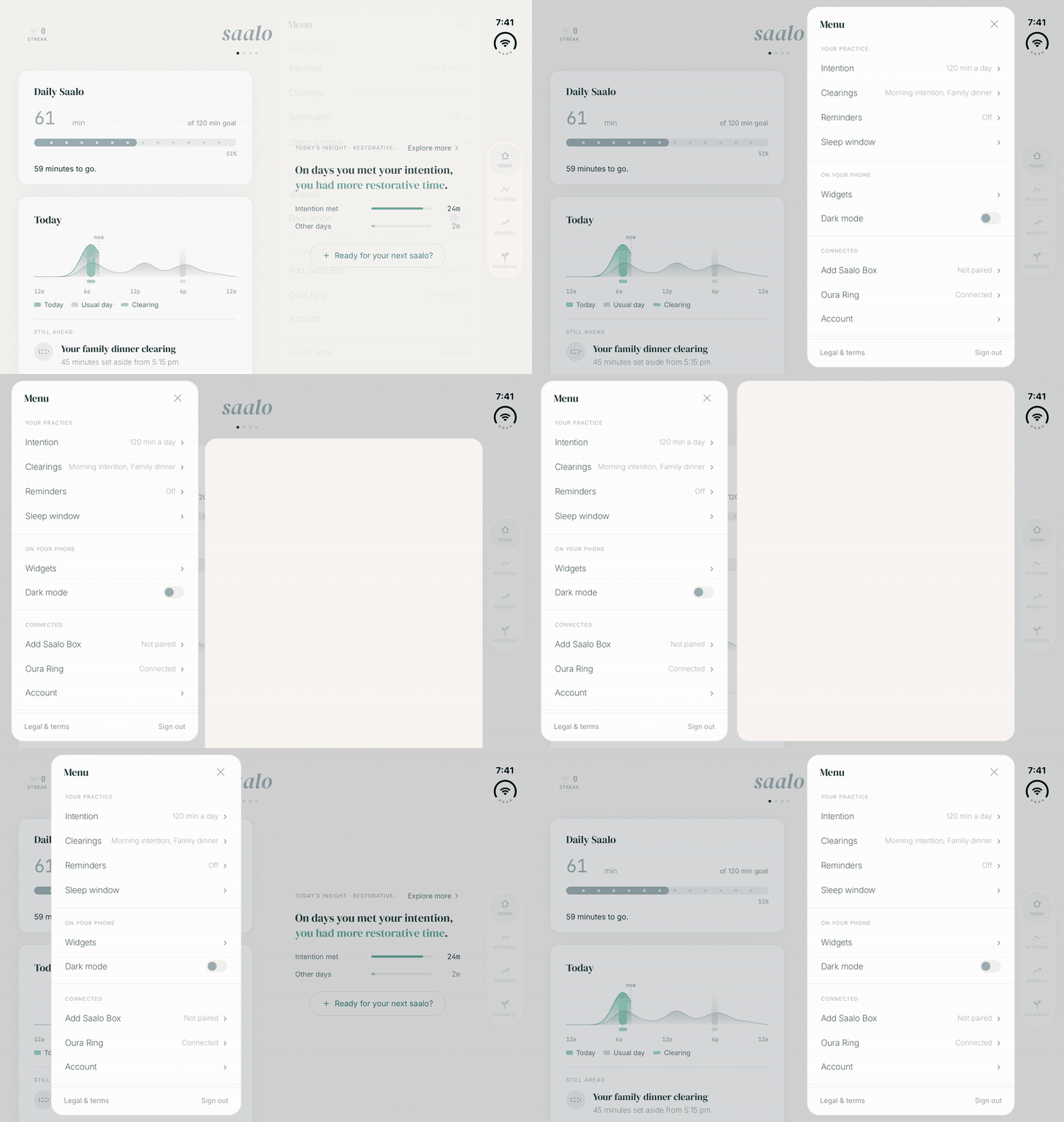
Last month I wrote a post about getting Saalo ready for iPhone Duo in one weekend. It was a quick pass, and I was proud of it. It laid out the pages of the app across both panes of an open iPhone Duo.
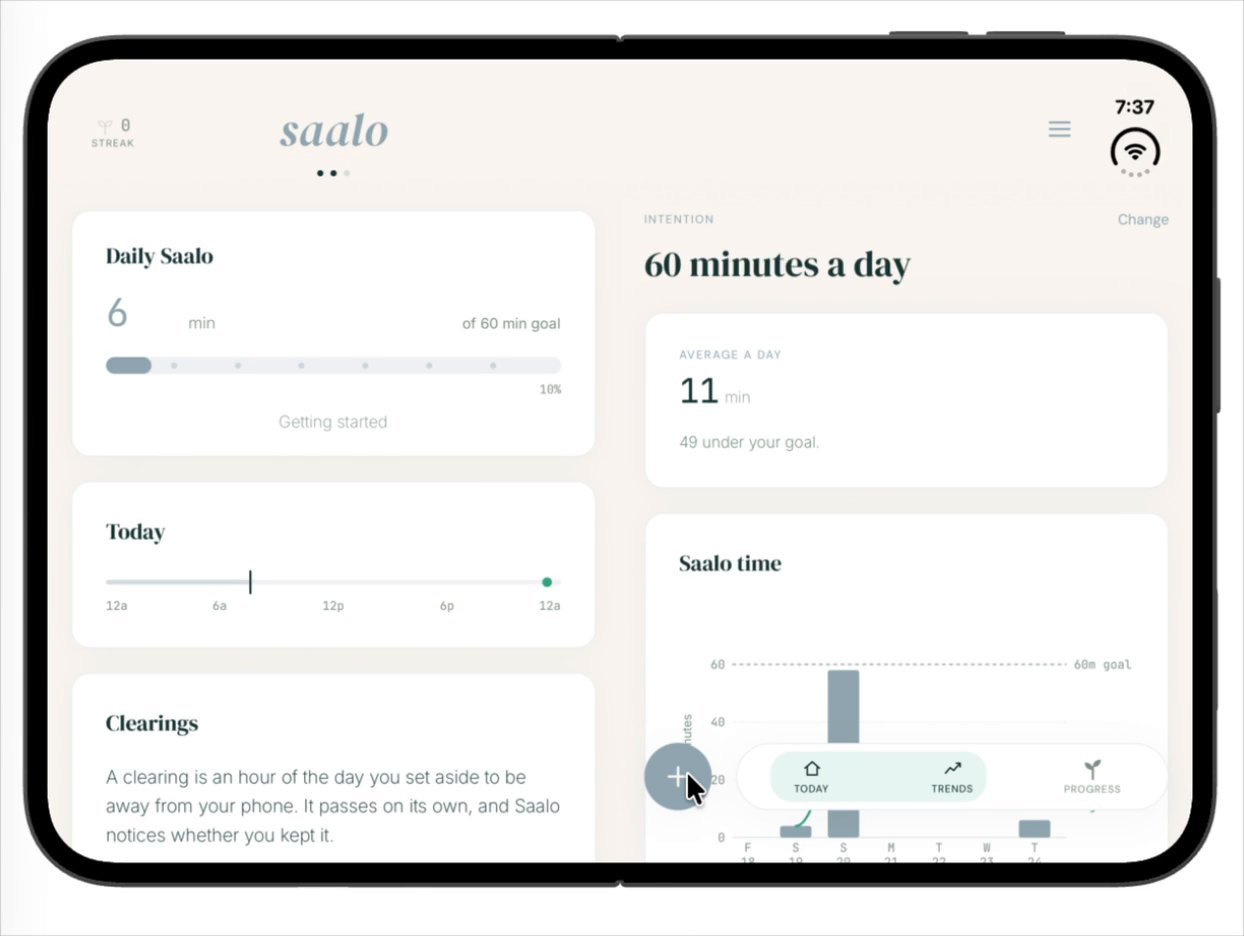
But I still had a lot of questions. How should I deal with the right rail with the wifi and clock in upper right? How does that play with a bottom nav bar? Should pages be two panes, one big wide one, or one medium-sized one centered? Where does the wordmark go at the top of a page when you go with two panes? And what should an app do when the Duo is opened in portrait? None of these questions had easy answers, and there wasn’t really a playbook.
Then I saw an article about Apple releasing App Store screenshots of its own apps on the Duo, many in landscape and some in portrait. Obviously Apple has massive resources to put behind designing their apps, so I went through them and tried to uncover some of the principles they were applying in this first generation of apps for Duo.
Apple’s layouts
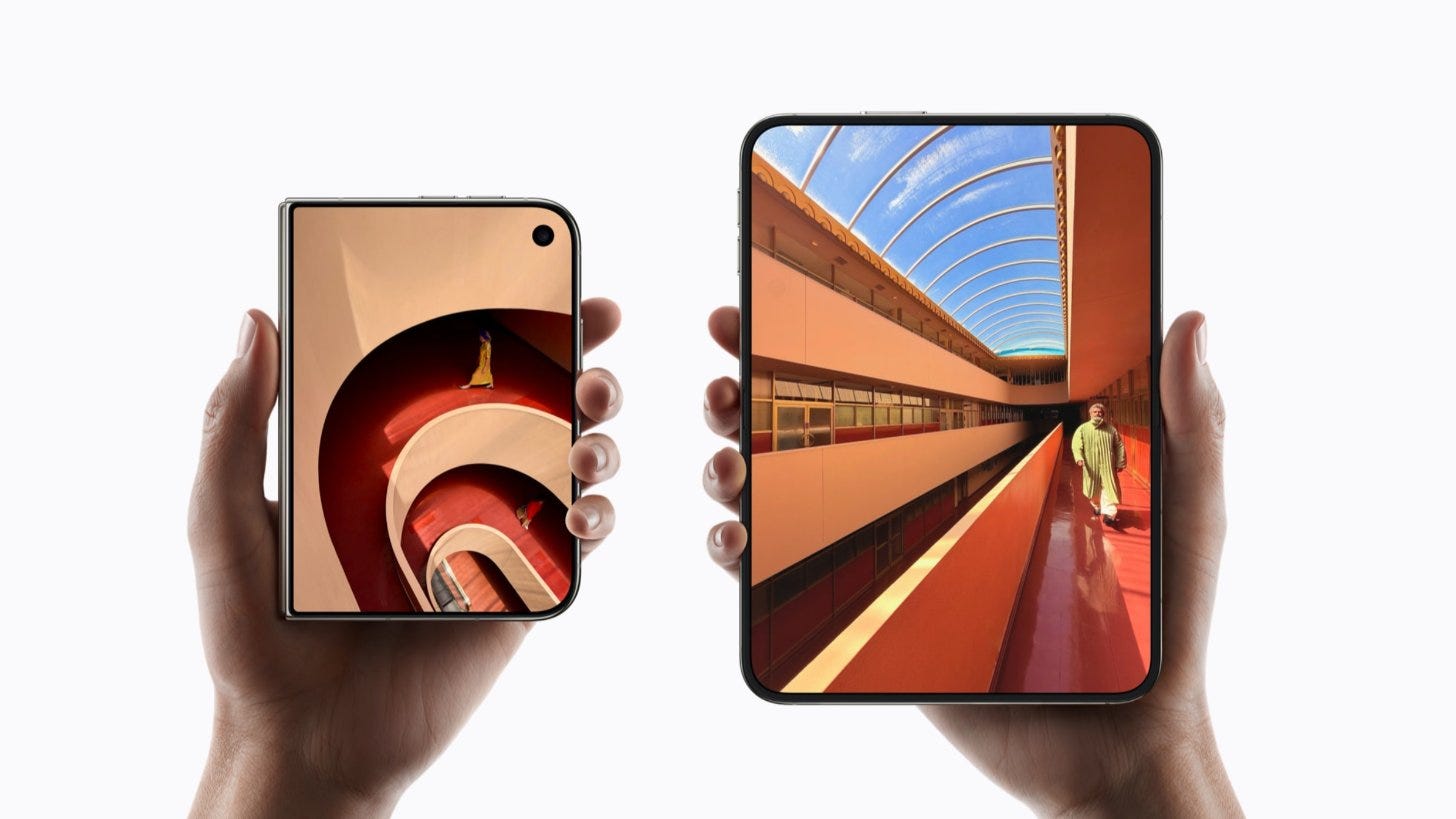
First, Apple showed apps that used about six different design paradigms; here’s a sampling.
Sidebar. Apps with a lot of places to go, like Health, Reminders and Clock, keep a list of those places down the left. It’s like a pinned menu.
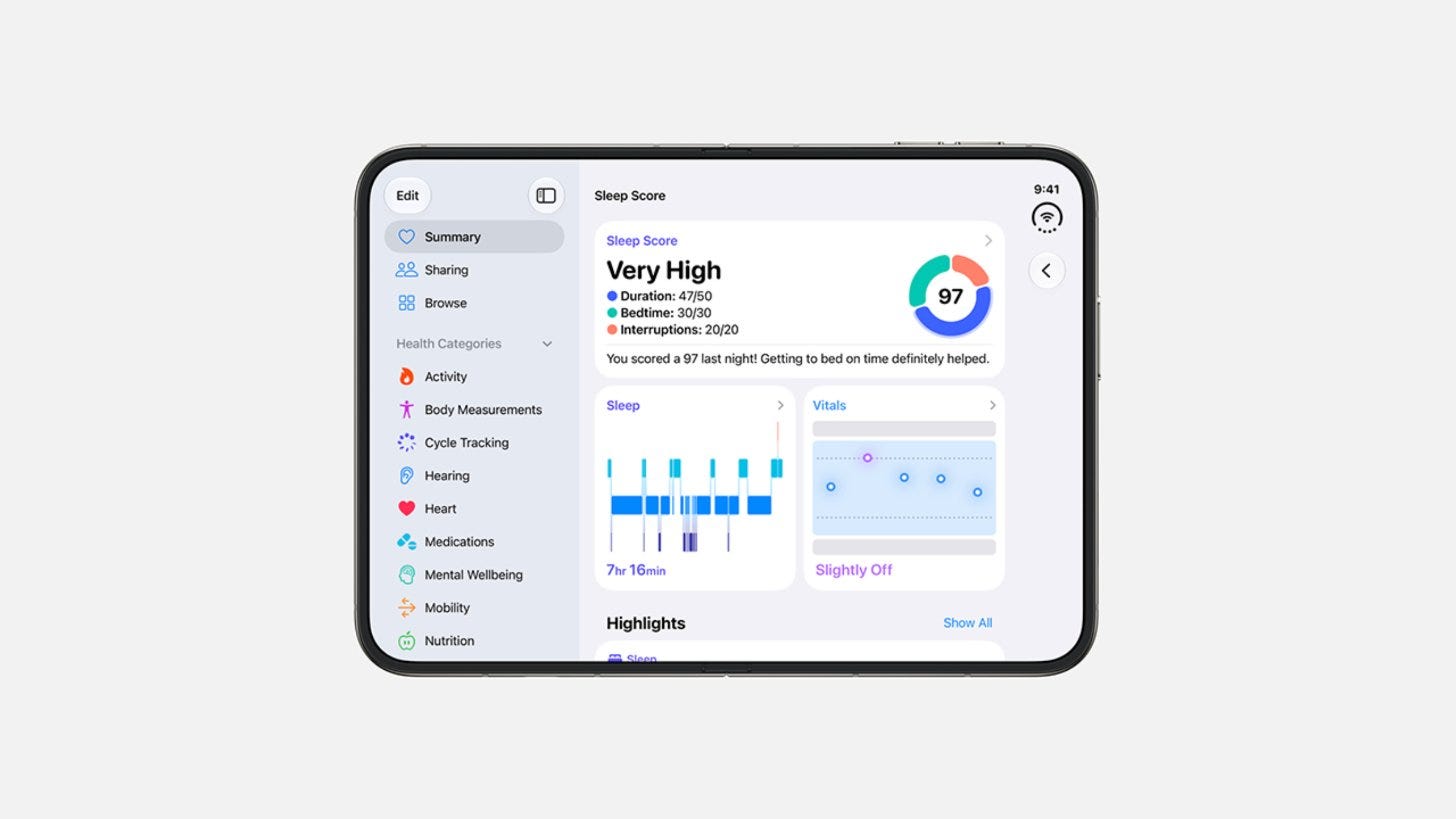
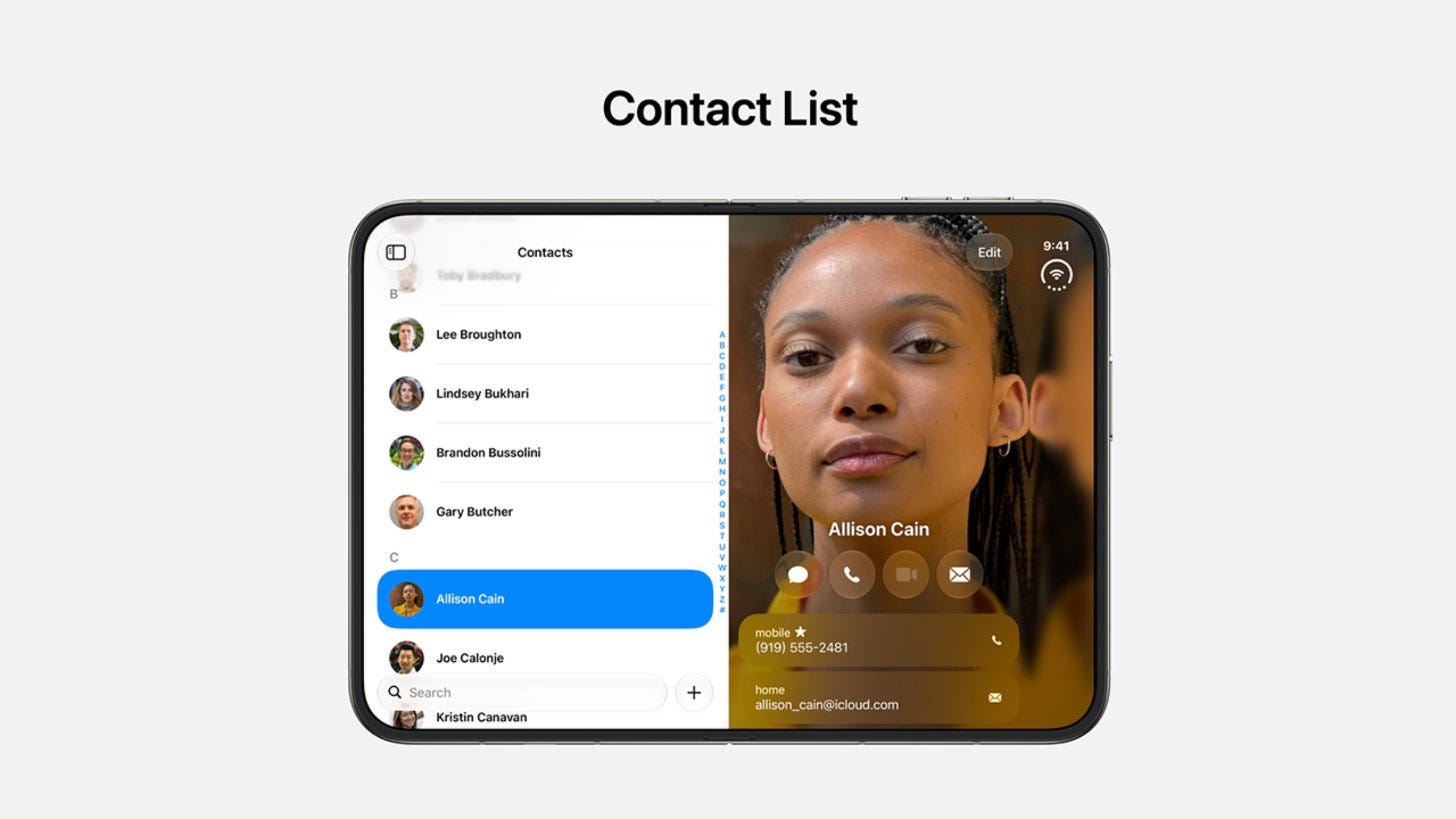
List and detail. Contacts, Mail and Siri put the list on the left and the thing you tapped on the right.
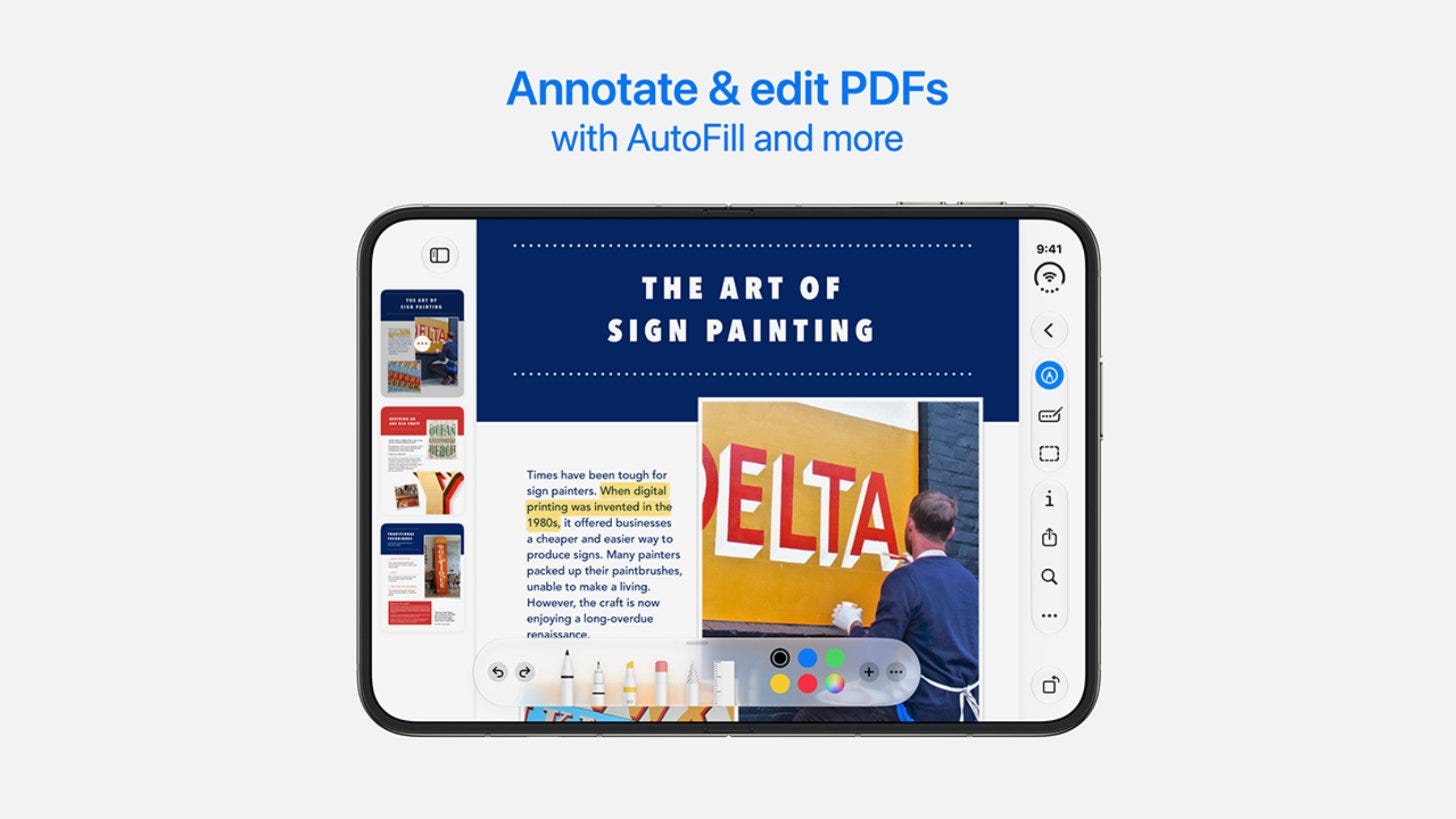
Canvas and palette. Many apps take up almost the whole screen and park the drawing tools in a palette along the bottom and right side.
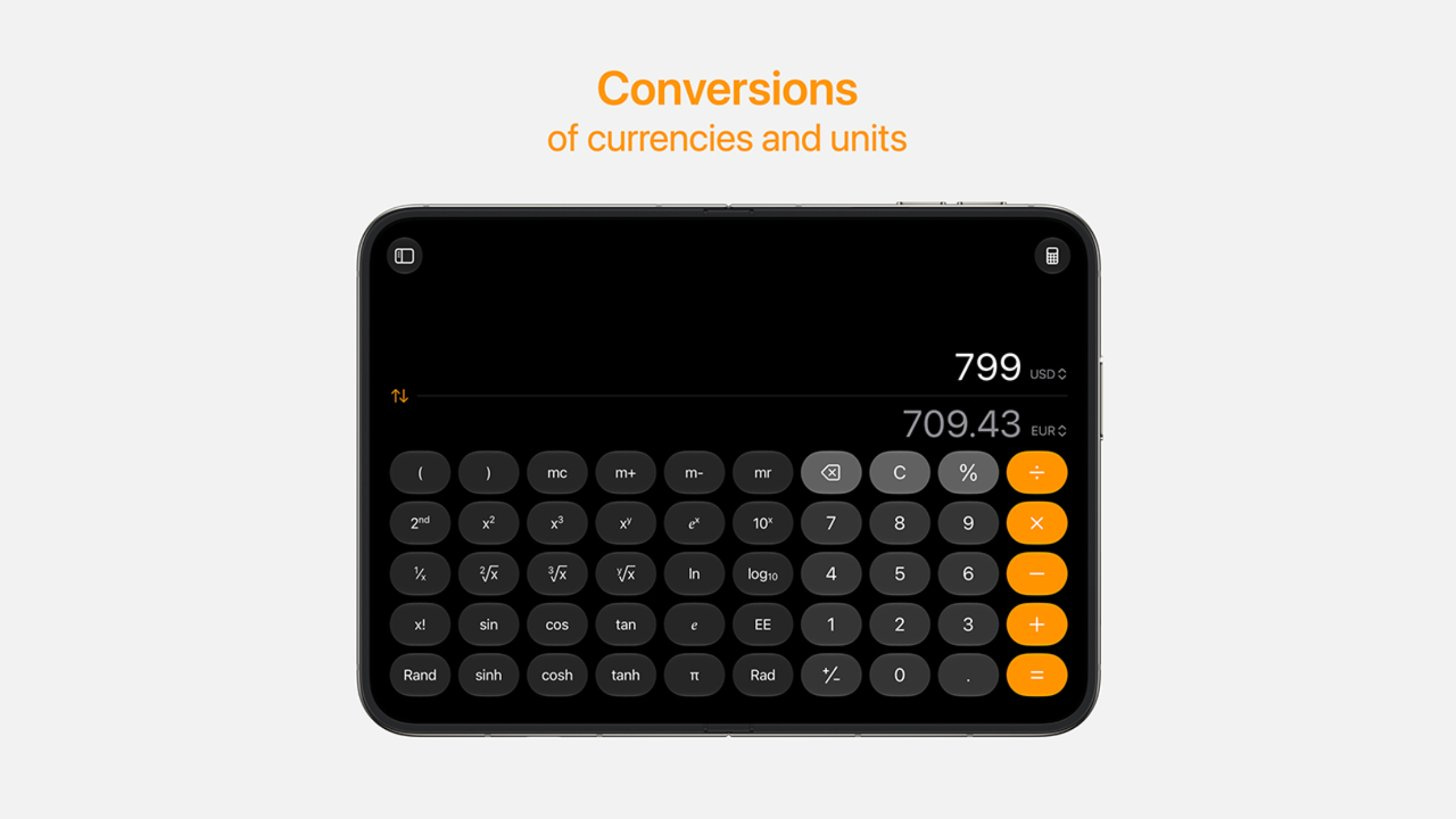
Full width, bars hidden. Calculator just fills the screen, because there isn’t much to navigate.
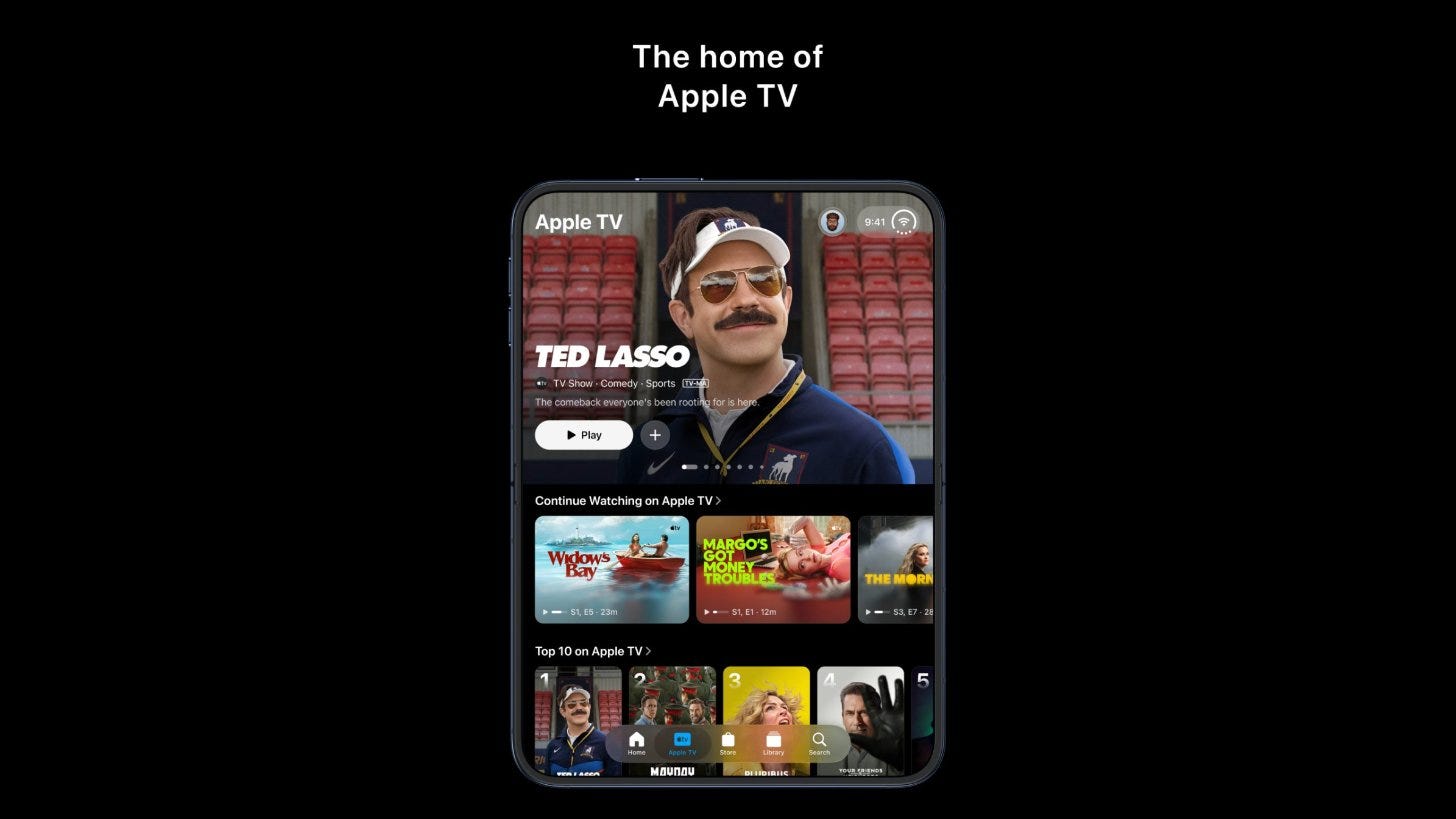
Open in Portrait. For reading and typing, Safari and Apple TV turn the open phone on its side, and the tabs go back to the bottom like a portrait iphone.
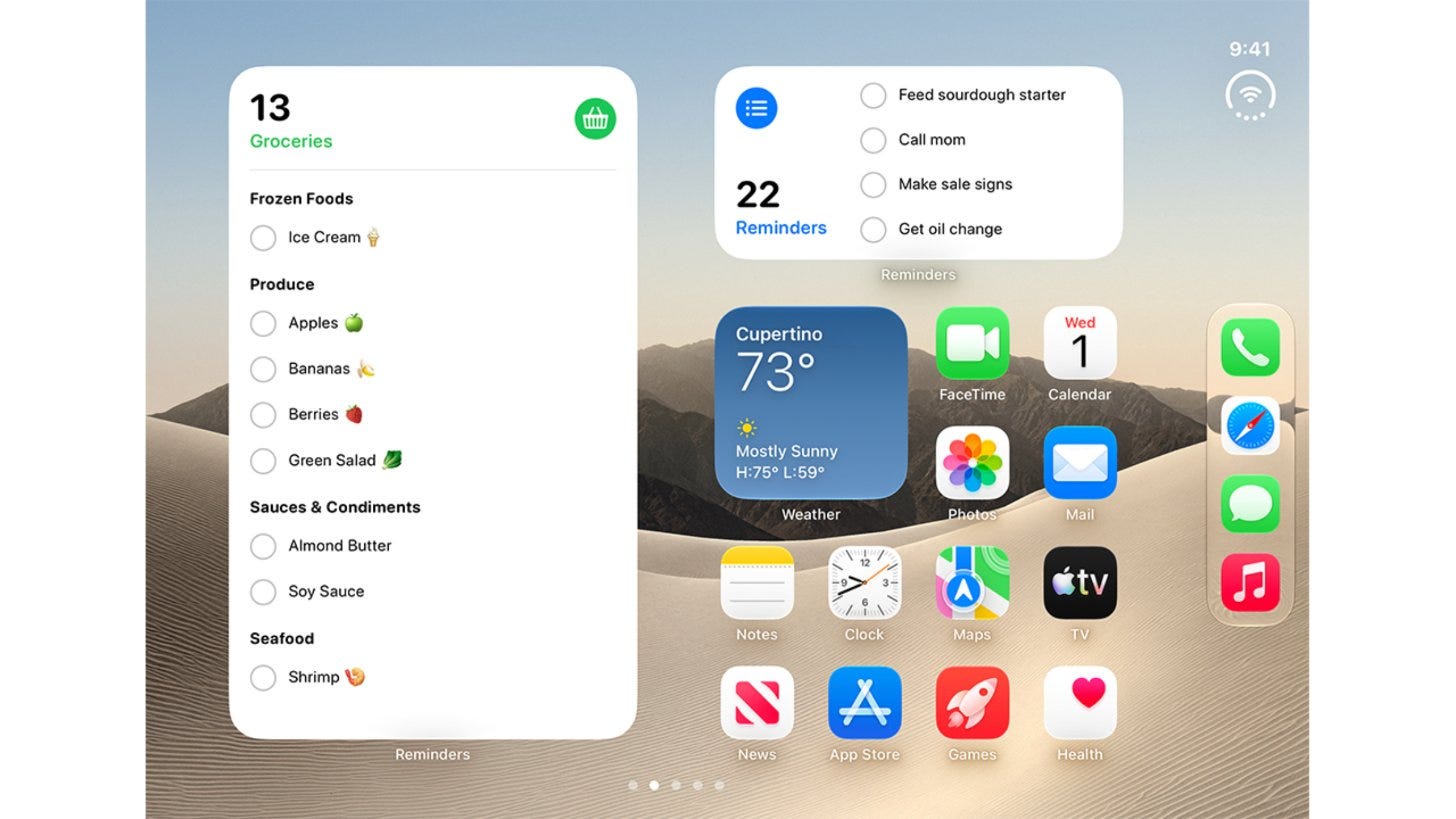
The Home Screen. Widgets on the left, apps on the right, and the Dock standing up along the right edge.
What seems to be going on
From what I can gather, here’s what seems to be going on with iPhone Duo app designs. Some apps have a split screen. Sometimes the split is half and half, and sometimes it’s more like 80/20. It’s hard to tell exactly what’s going on. Here are some examples.
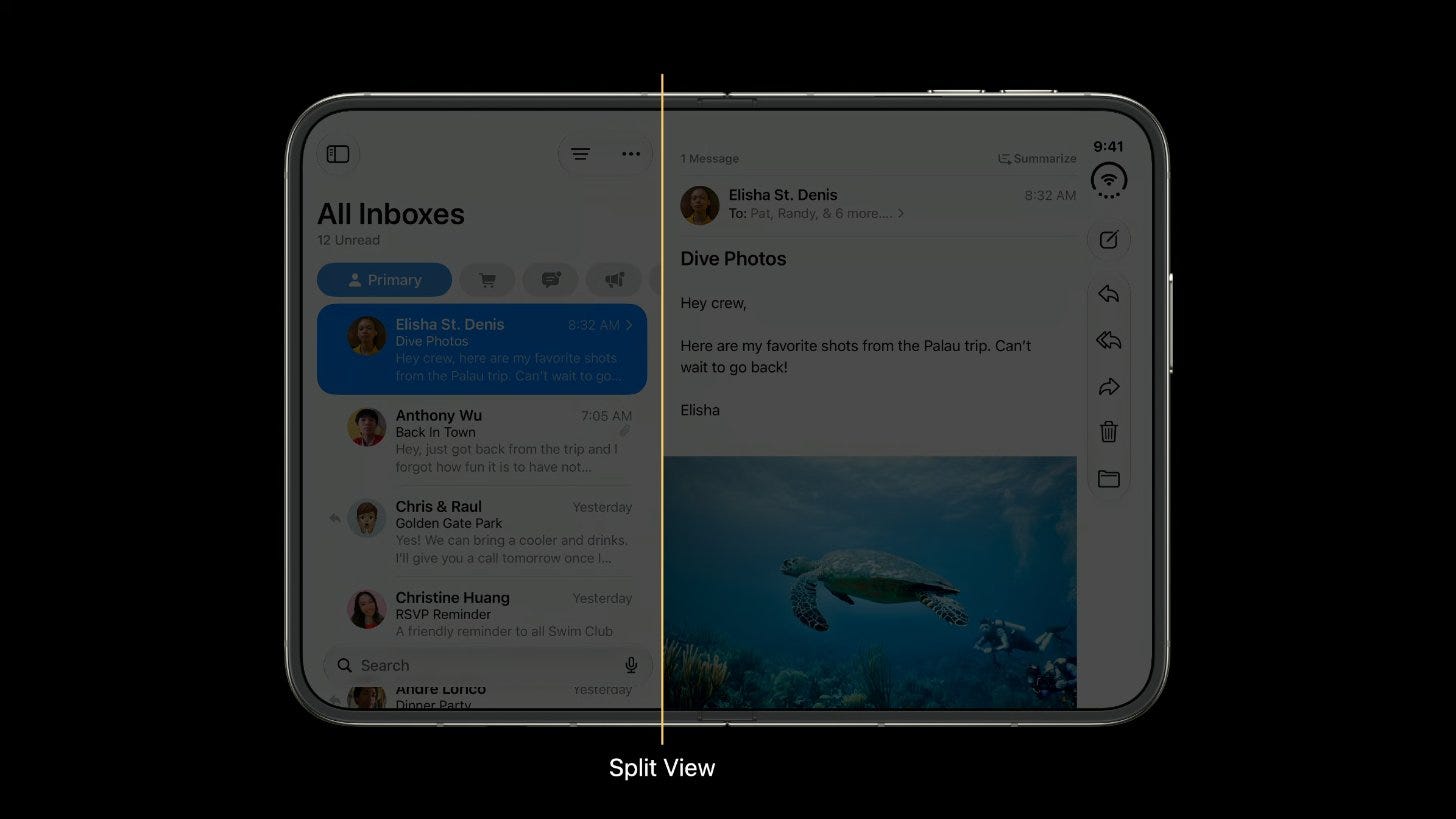
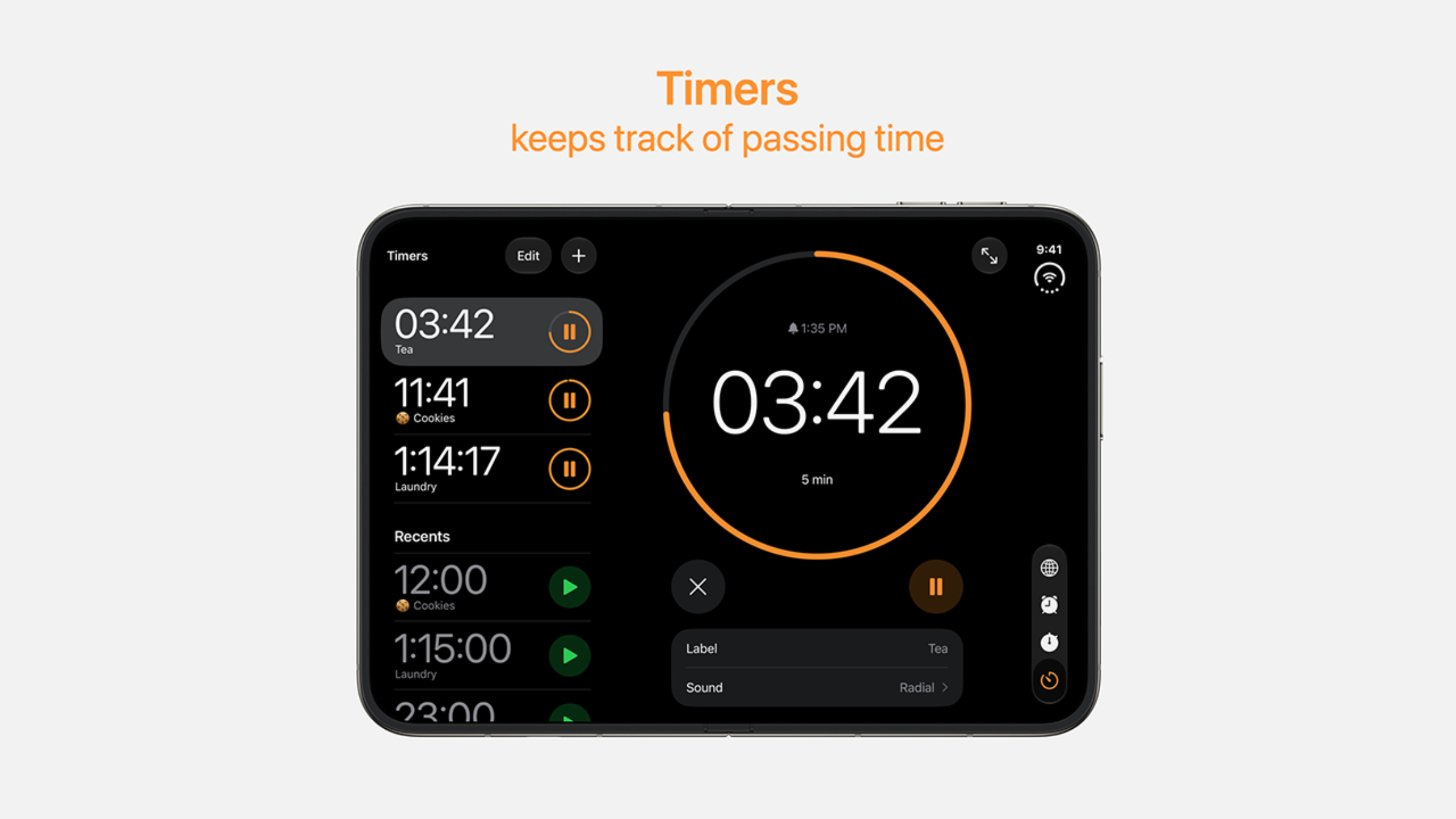
But in general the navigational panel to the left is slightly smaller, and the detail view on the right is bigger. I can’t tell if they scroll together or separately.
Controls on the right
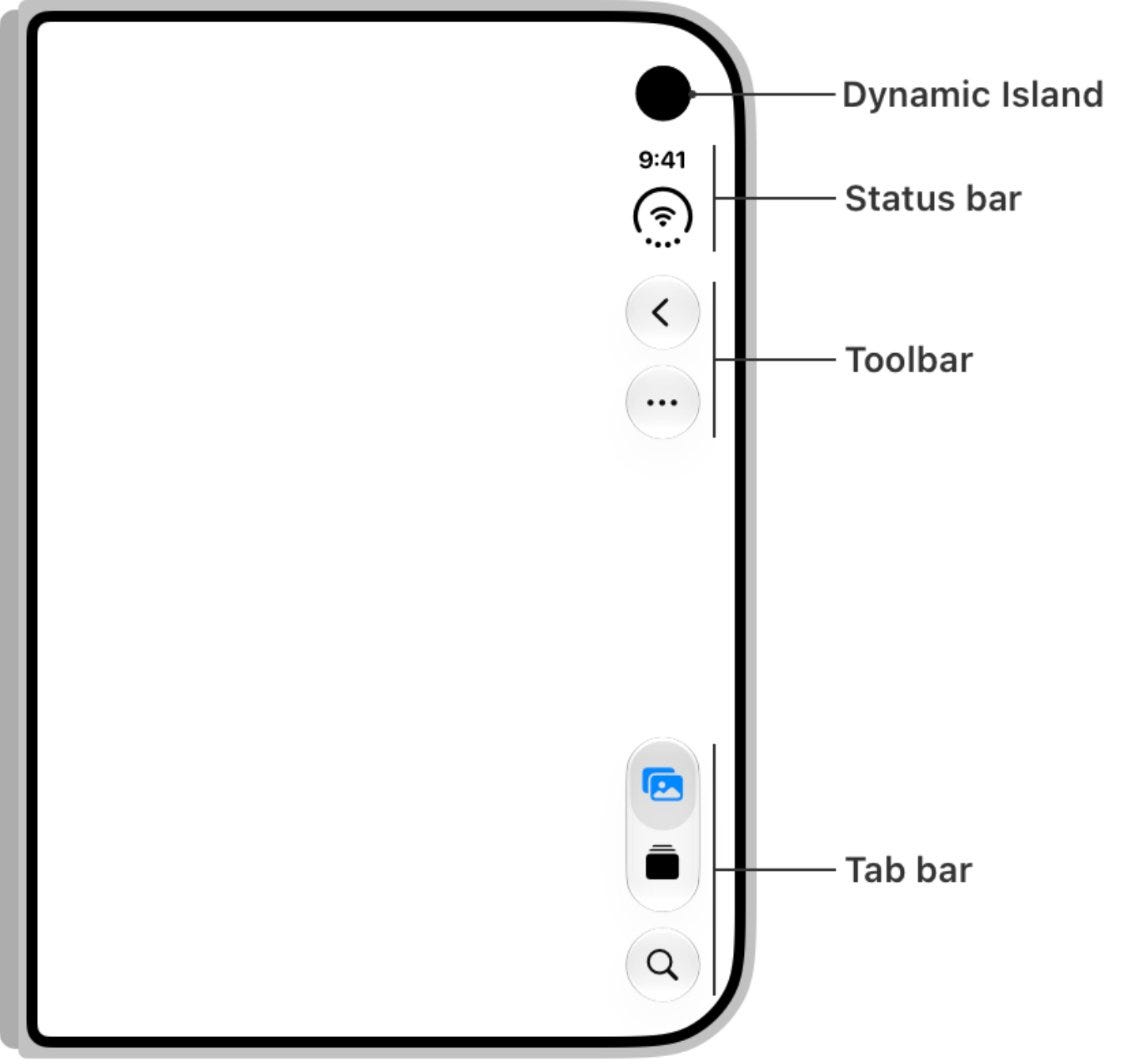
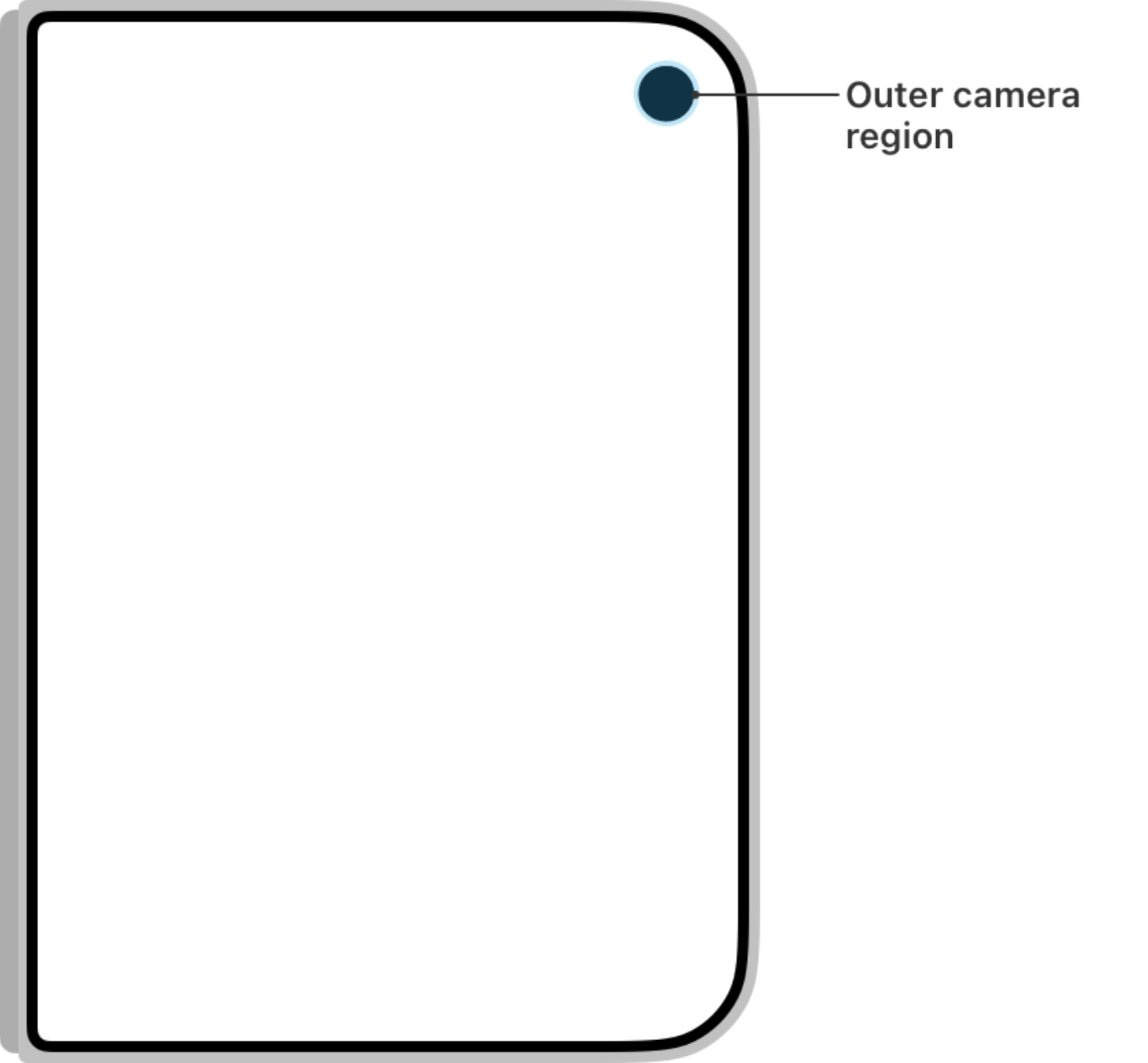
This part took some getting used to. And it's nice that Apple put out a little guide. The image below shows the external screen, but the same could be used for the right rail of Duo, because the wifi/clock create a sort of dead zone at the top right, and so the right rail becomes an alley, especially for an app where you scroll or nav (the calculator app above is the exception that proves the rule). The tab bar and toolbar buttons now stand up along the right edge, whether the phone is closed or open in landscape. It’s a new thing we all have to design around.
The camera corner
On the closed Duo, the camera sits in the top right corner. It creates a little bit of an issue, because nothing can go up there. But it kind of mirrors where the Wi-Fi signal and clock sit on the inside screen, so it all ties back to the right rail or alley.
Thinking in terms of depth
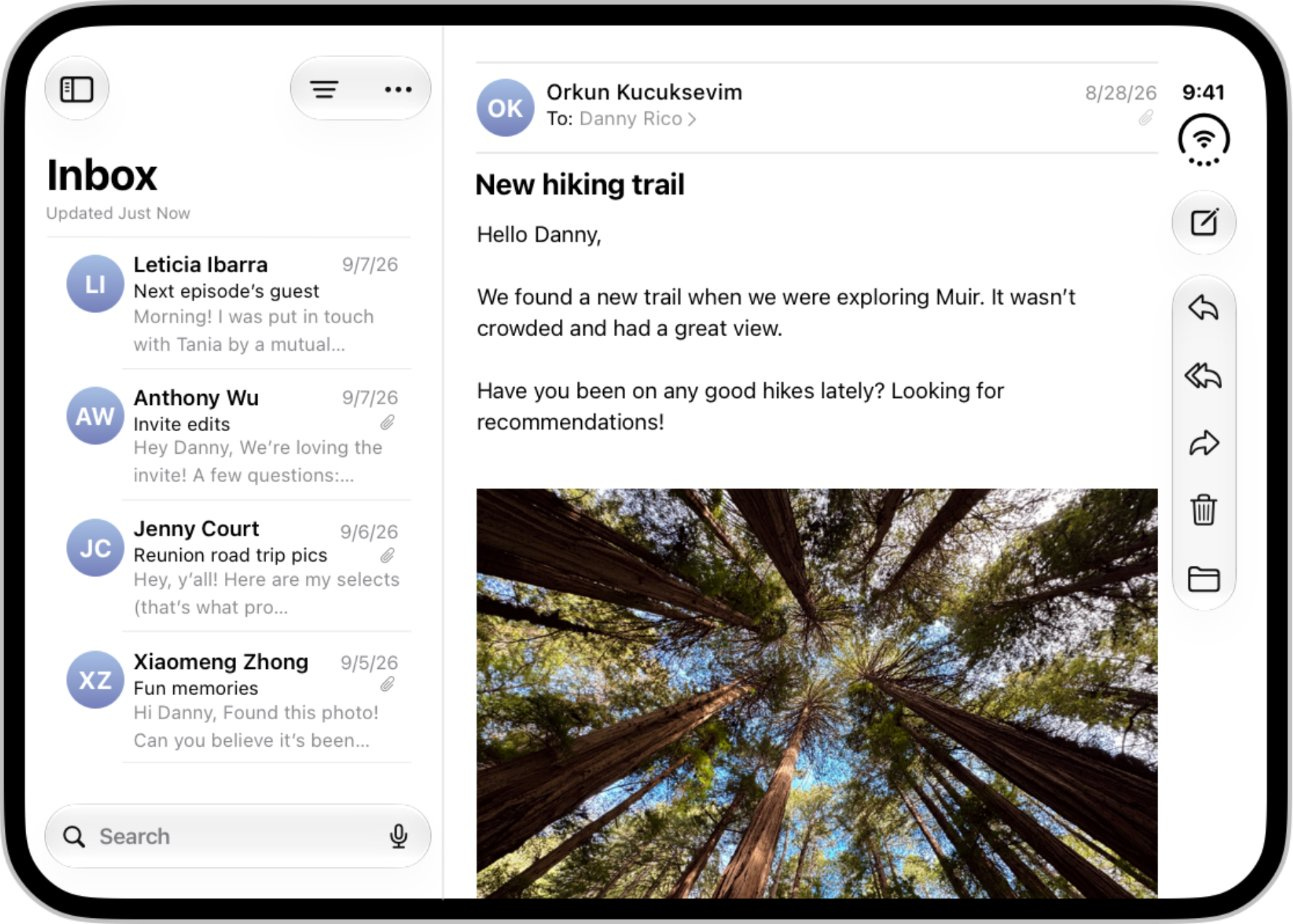
It seems like Apple is thinking about layout in terms of the depth of the content. So for things like an inbox, they put the inbox on the left and the message on the right. Closed, Mail shows you one or the other. Open, it shows you both.
The fold
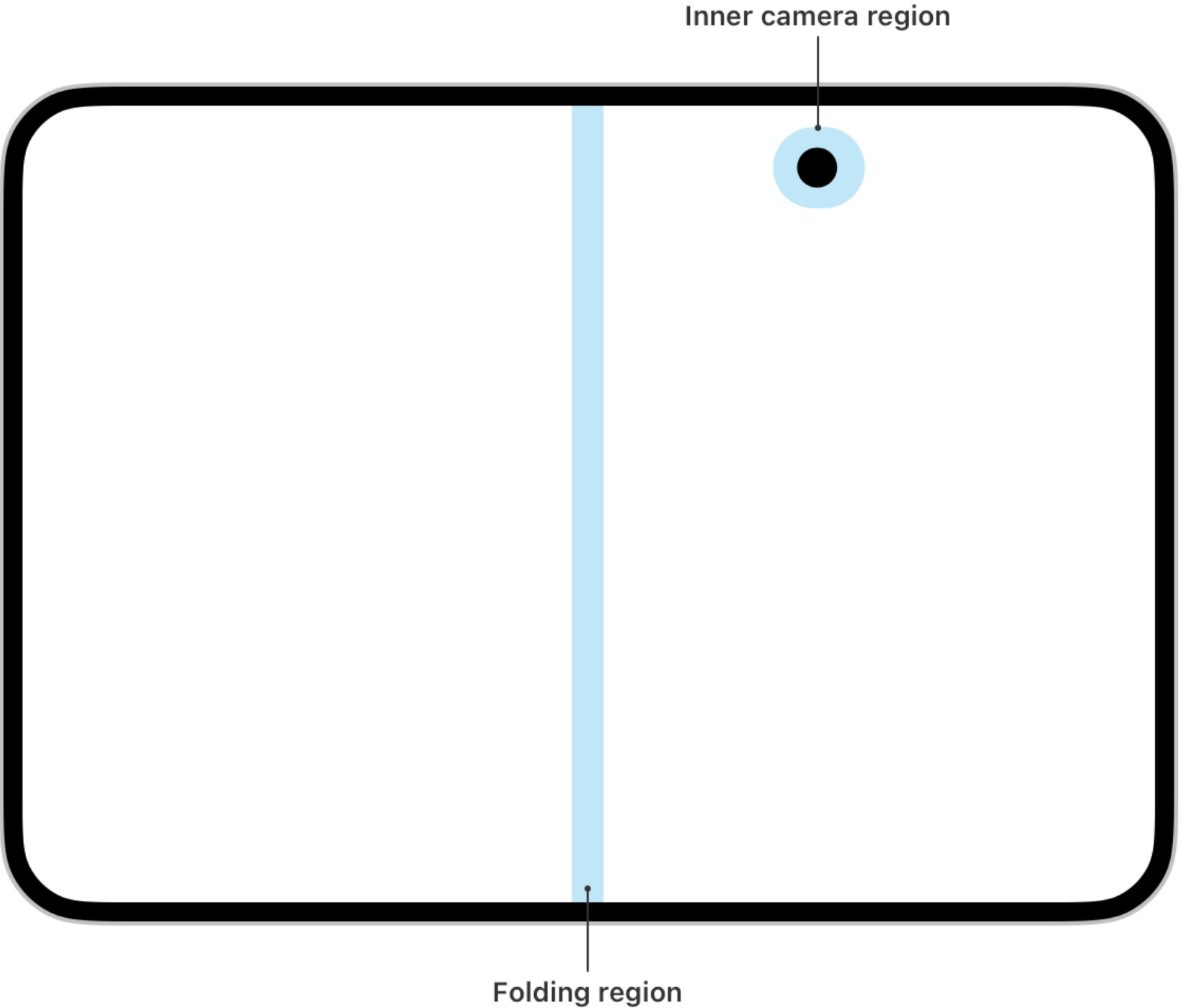
Apple keeps buttons and text out of the crease in the middle, which makes sense. But often content will lay right on top of the fold. I still don’t have a good sense of how to handle the fold. In the image below, it appears centered, but because there is a right alley that’s used for wifi/clock and navigation in many apps, the left “pane” (to the left of the fold) is larger than the right “pane” (between the pane and the right alley)
Changing orientations
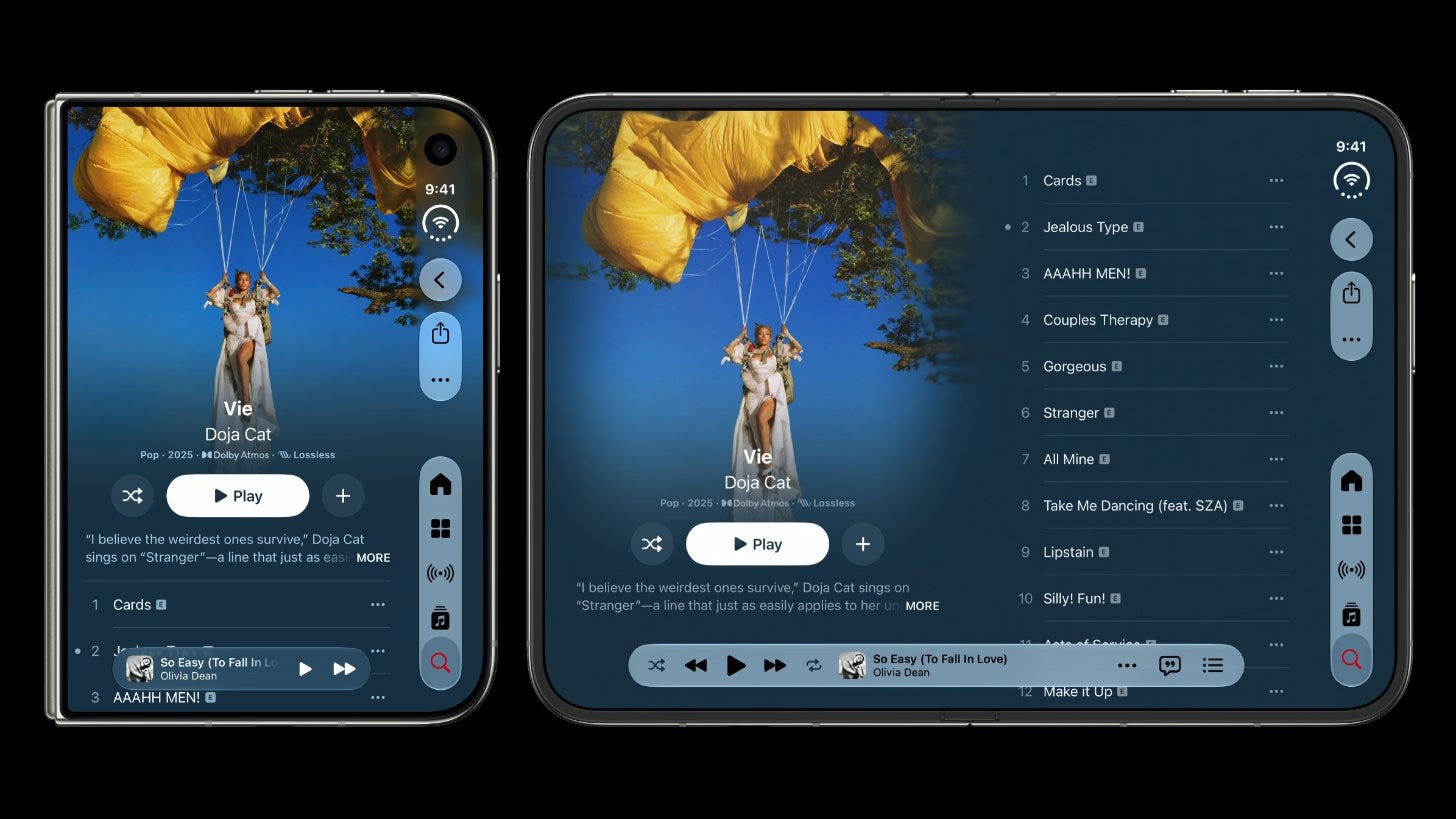
Apple has made some really beautiful things here. The Music app goes from one stacked column to two columns when there’s more width, and it looks great.
How I applied this to Saalo
Saalo is a much simpler app than Mail or Health, so not everything carried over. Here's where I've landed for now.
A layout for each page
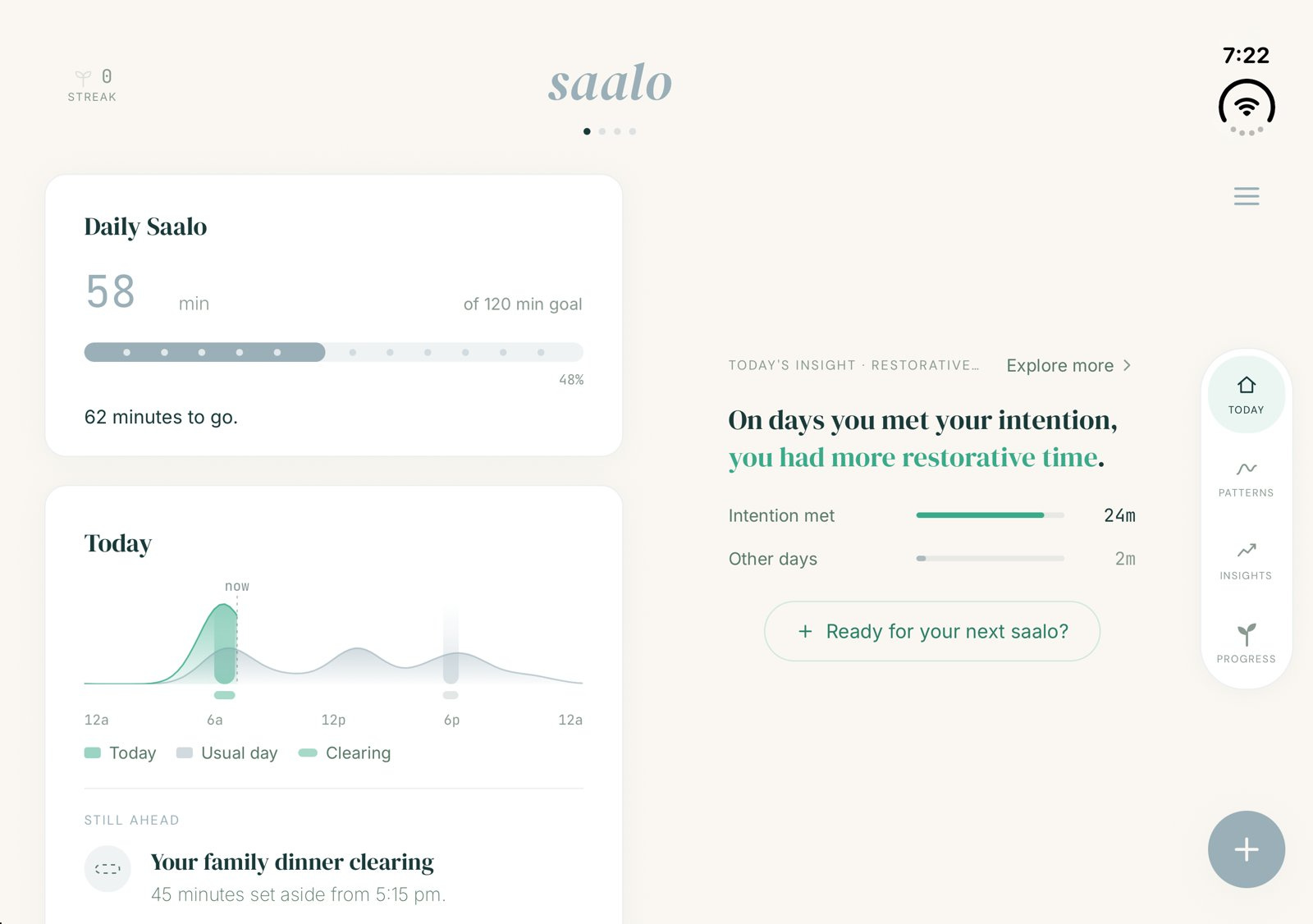
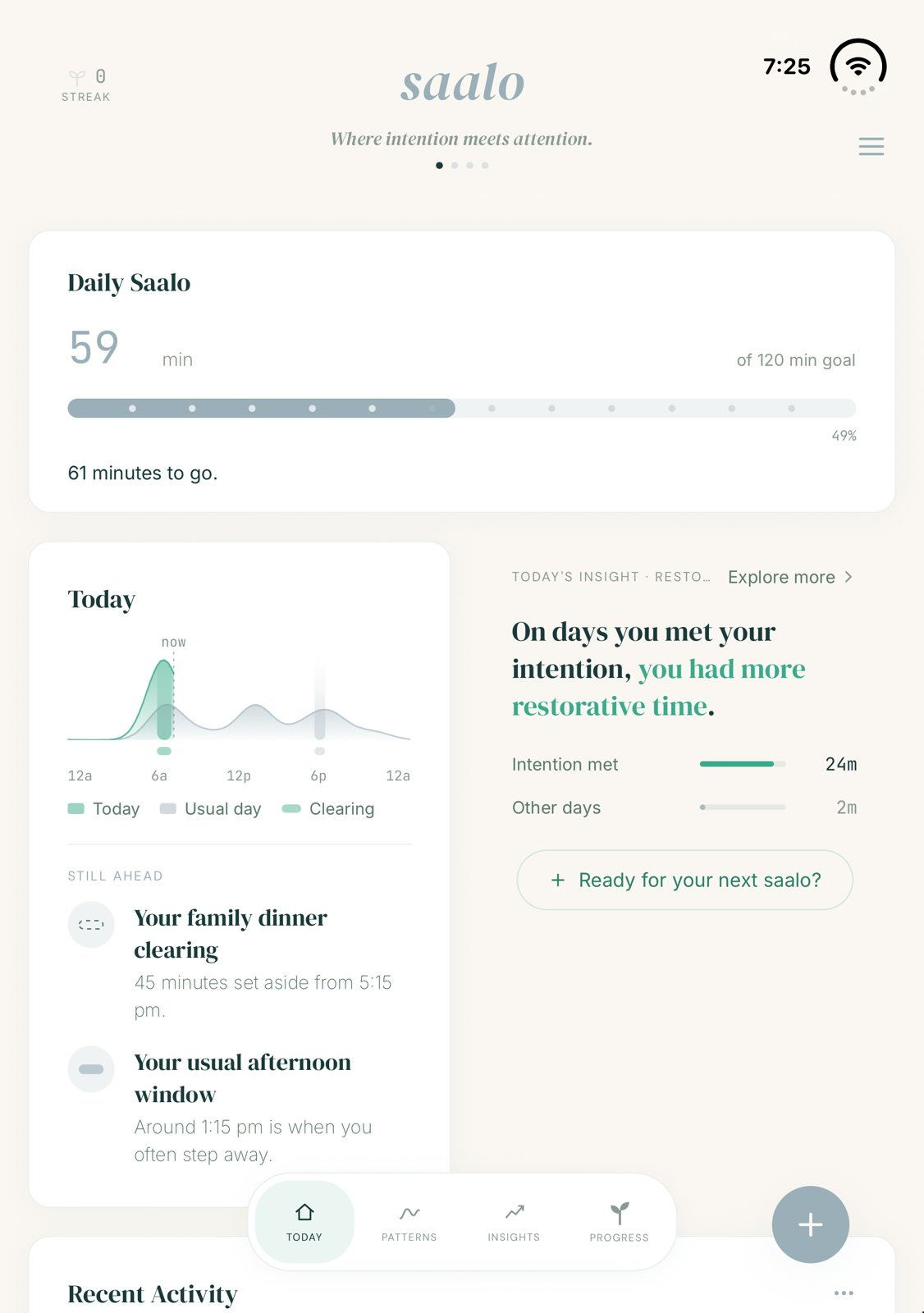
Saalo doesn't have much depth, by design. This app isn’t meant for scrolling… There are only four pages (Today, Patterns, Insights and Progress), so I tried a sidebar and threw it out because it was way too busy. Instead, each page got the layout that fit it. Today is a split: your day scrolls on the left, and today's insight sits on the right. Patterns, Insights and Progress each became one wide page.
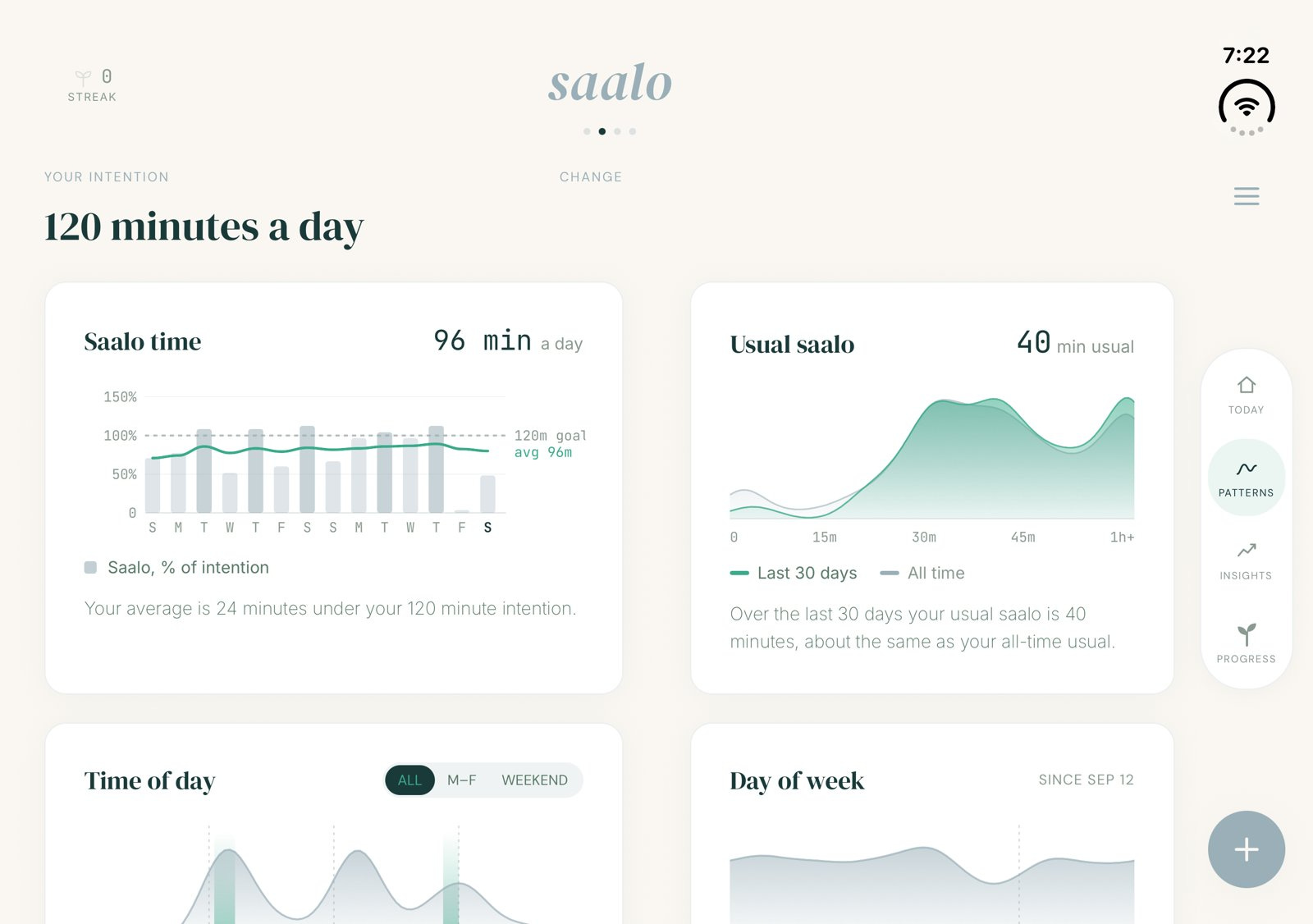
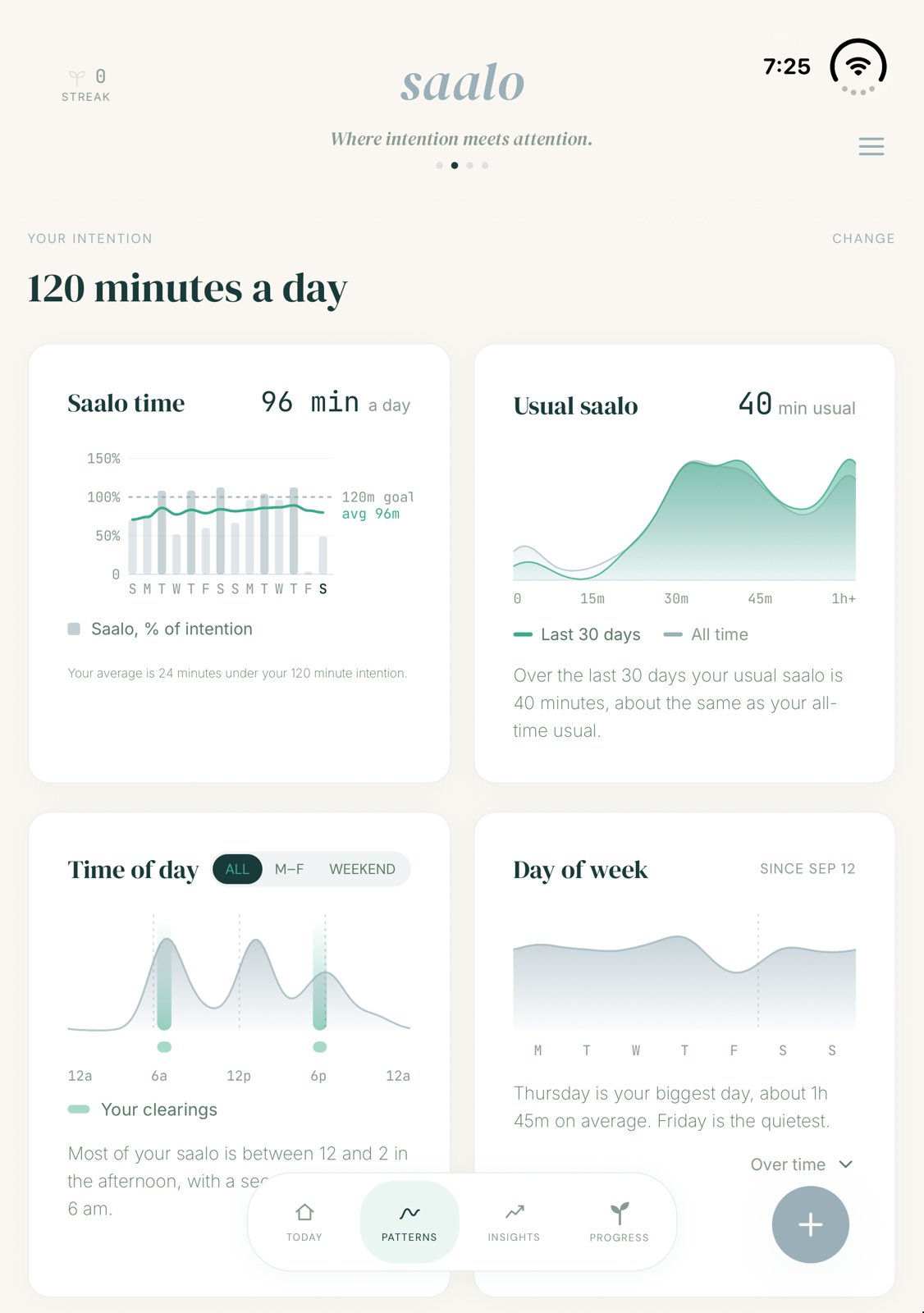
Patterns, Insights, and Progress all got a full page, with a little scroll. I tried to make each have the charts neat and tidy, like this is your dashboard
The right alley
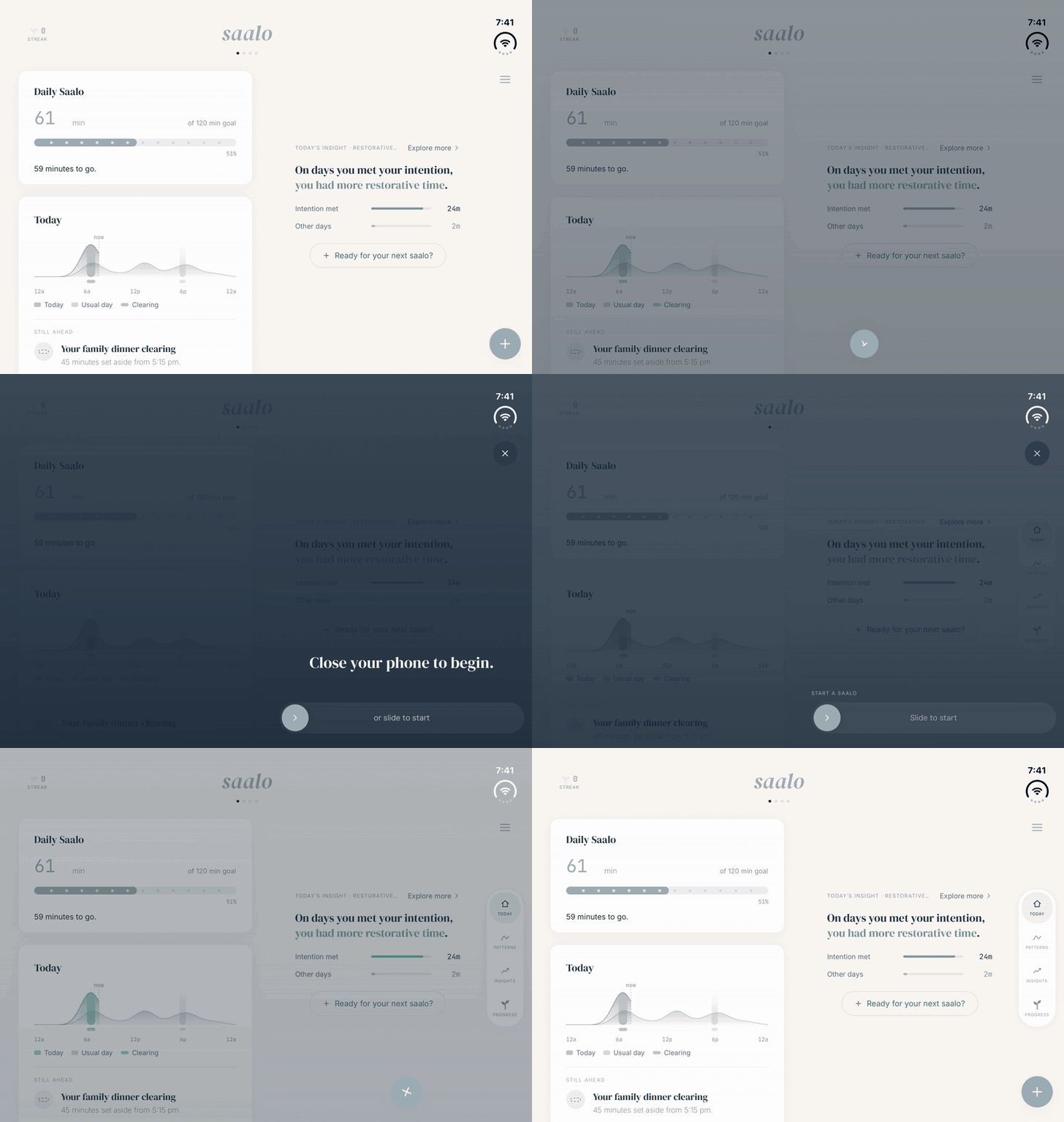
In Saalo, the alley meant moving the + button from the bottom left to the bottom right - this is also more natural tap target for someone holding with two hands. So now the menu is at the top (below the clock and wifi) and the four tabs in between. We want to keep the + where someone's thumb can reach it, but the slider that starts a saalo sits further left. So we created this little rolling animation: when you tap the +, it rolls left and becomes the knob you slide to start.
When the open phone is held upright, the tabs go back along the bottom, like Apple's apps. The + and the menu stay in the same corners either way.
Leaving the camera corner alone
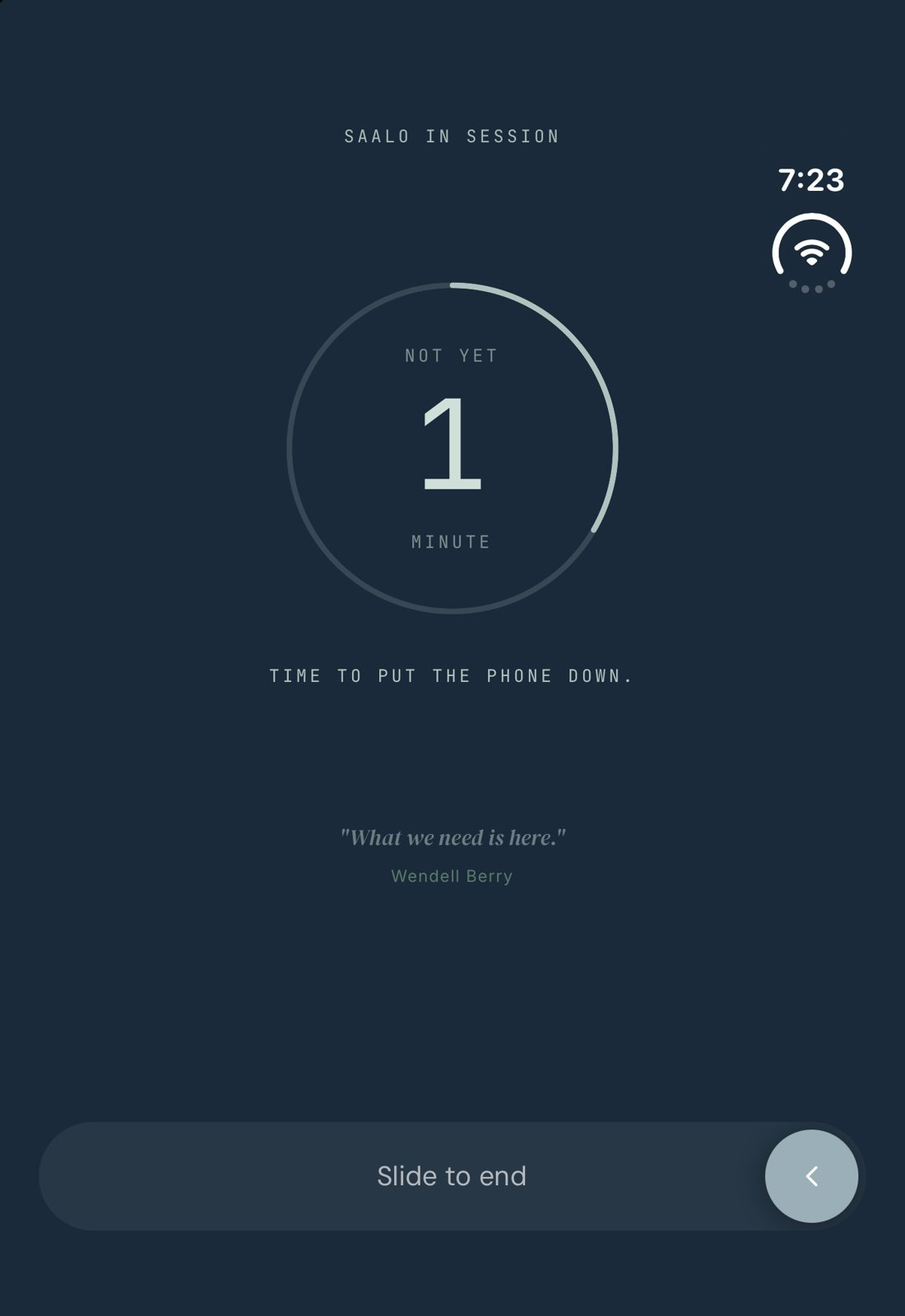
Nothing in Saalo goes in the top right. On the closed screen that's where the camera is, and on the open screen it's the Wi-Fi and clock. So the check you tap to save a finished saalo sits on the right edge, just above the slider.
Going one level deeper
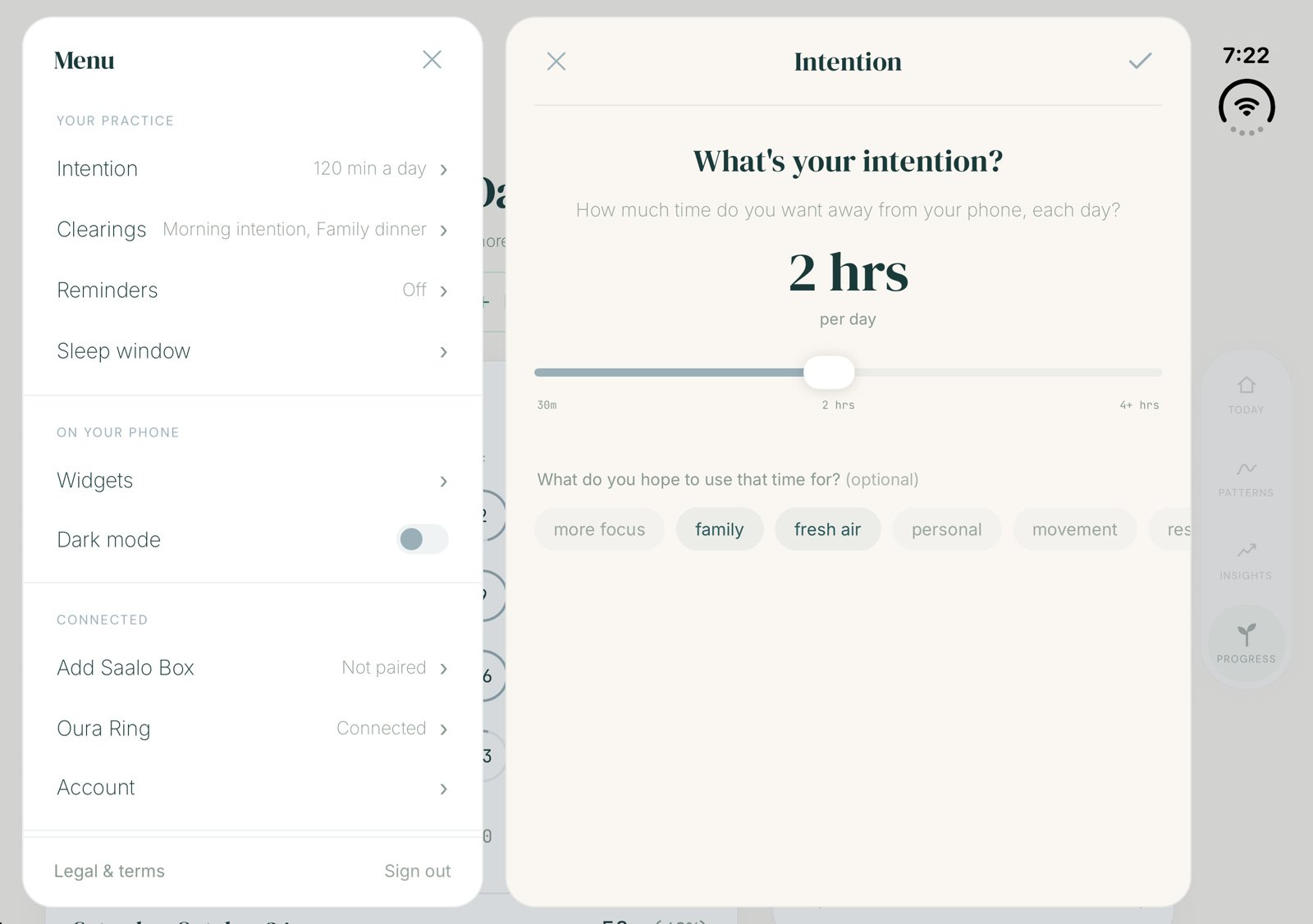
Saalo doesn't have an inbox, but the menu works a bit like one (that's the GIF at the top of this post). When you open it and pick something, the menu slides over to the left and the screen you picked opens on the right. I tried to downsize the menu a bit once you’ve made your selection. The menu's button turns into an X that sits on the menu itself, and the screen it opens gets its own X, so each X closes the thing it's sitting on. I think I still need to make the X placement more consistent and the save (checks) too.
Held upright
Taking a cue from Music, Saalo's cards now go two across when the open phone is held upright, instead of one long column running the full width. The nav bar shifts back to the bottom, but the menu and + stay toward the right side.
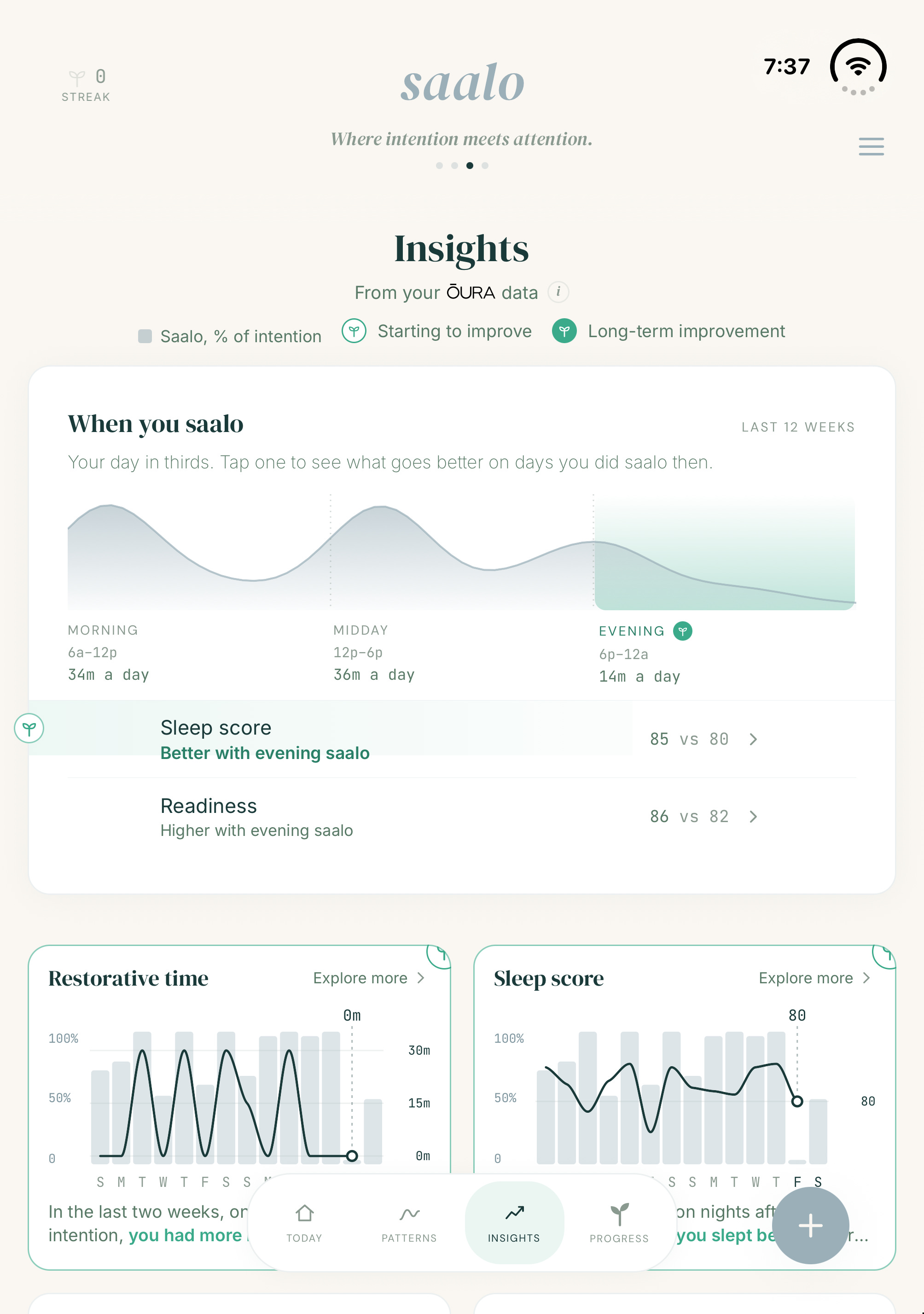
Insights is the aha moment of the app for me. I love seeing how my biometrics are changing the more I use Saalo. It lines up when you saalo with your Oura data like sleep, HRV, resting heart rate, steps and activity, and daytime stress. You can also link Apple Health if you don’t have an Oura Ring. Bottom line, you can see what goes better on the days you step away, like a higher sleep score after an evening saalo. Held upright, When you saalo runs across the top and the charts sit two by two underneath.
Open questions.
Plenty of this still doesn't feel settled.
The fold. I tried to keep most everything off it, so Saalo's left pane ends up wider than the right one, and I'm not sure that's right. When the menu slides left, the new card does cross the fold, and I’m curious how that will feel. I also wonder whether the fold should mean something, like noon on a day, the start of the weekend, or before and after. Again, it’s not exactly square in the content because of the right rail.
What scrolls. On Today only the left side scrolls, and the centered "saalo" wordmark fades as that side scrolls up into it while the right side stays put. It works, sort of, but I haven't figured out what a wordmark should do when only half the screen moves. I also couldn't tell whether Apple's two “panes” on many apps scroll together or separately.
The end of a saalo. When a saalo ends, the number sits on the left, the slider and the check sit on the right, and the rest of the right side is empty. I'm just not sure what to do with it yet. Would love any suggestions. The slider needs to stay bottom right, and the confirm tap target needs to be easy to reach. And when the session is confirmed the bar shifts to the progress bar on the home page, so there’s some nuance here.
Which way things move. I thought it made sense for older things to move left as newer things flip in on the right. But I'm right-handed, so maybe that's backwards for some people. At the same time, we read left to right (most of us do), so it’s still tbd what’s the right approach.
I don't think this whole story has been written yet. People are still going to explore how to do this, and I'm sure a lot of it will change.
So I'm curious how other people are designing their apps for the Duo. Are you going with two panes, one wide page, or something else? Tell me in the comments. And if these posts are useful, subscribing would mean a lot. I'll keep sharing as I go.
Saalo is free on the App Store if you'd like to try it, on a Duo or a regular iPhone.